Latest Release Notes The latest information regarding new Hub releases
Latest Release Notes
Release 26.11.0 21 updates LIVE
✨ Themed popup pages, AI-assisted themes, reusable workspace presets, ownership transfers, and a more consistent Hub and Designer experience.
Keep the main page in view
Open focused forms, details, and help in themed popup pages, with flexible placement and docking.
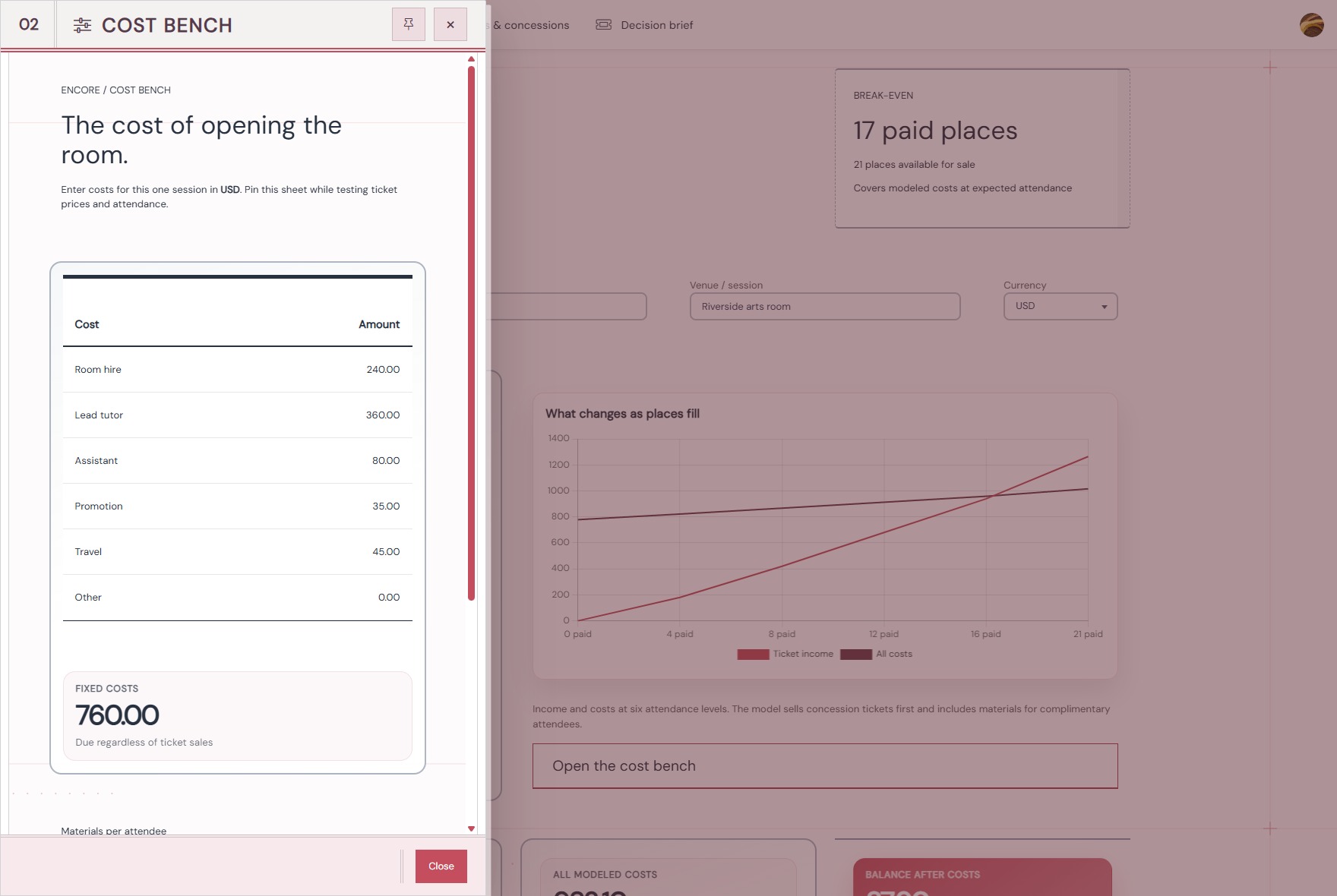
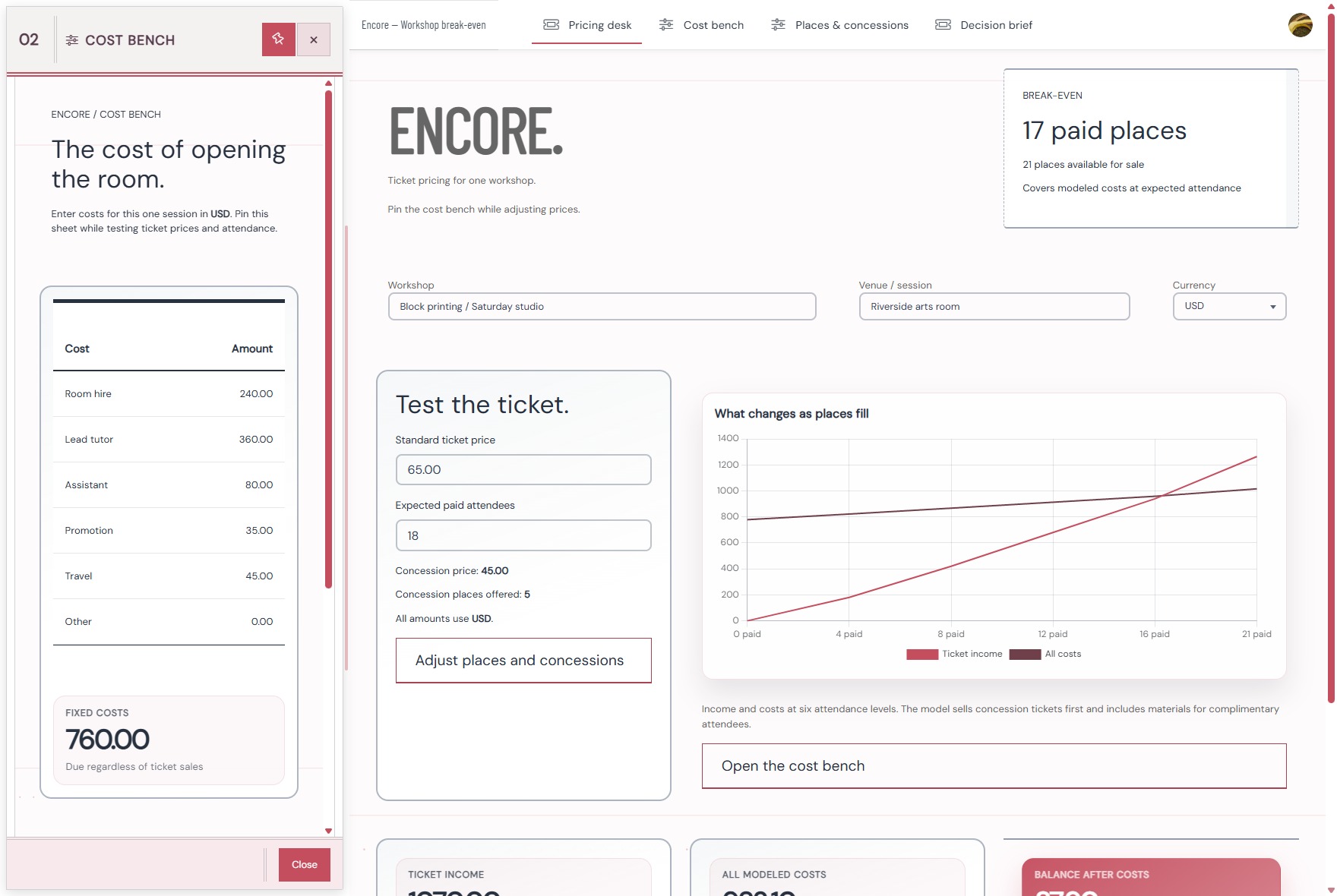
Give supporting tasks a place of their own while keeping the application’s main page close at hand. Popup pages use the application theme and can float over the page or share the screen beside it.
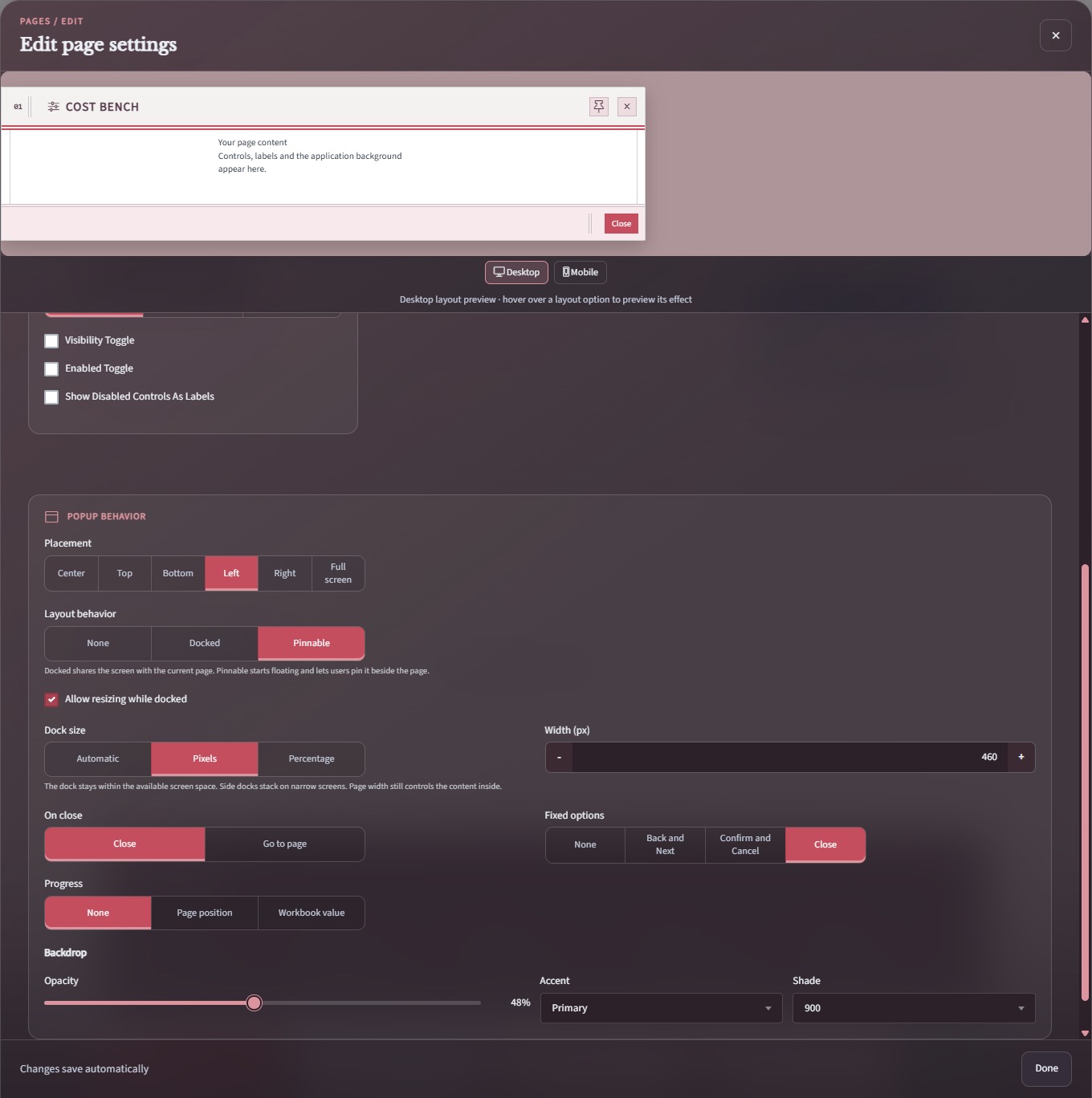
- Choose a popup appearance and place it at the center, an edge, or full screen.
- Use docked or pinnable layouts where supported, with optional resizing.
- Configure close actions and progress controls to fit the journey.
Where to find it
In Layout & Controls, open Pages, add or edit a page, and choose Popup. Configure its appearance and Popup behavior.
Loading screenshot…
Use Left and Right arrow keys to browse images.
Describe a look and make it yours
Create or refine a coordinated application theme with AI, where available, and review it before applying.
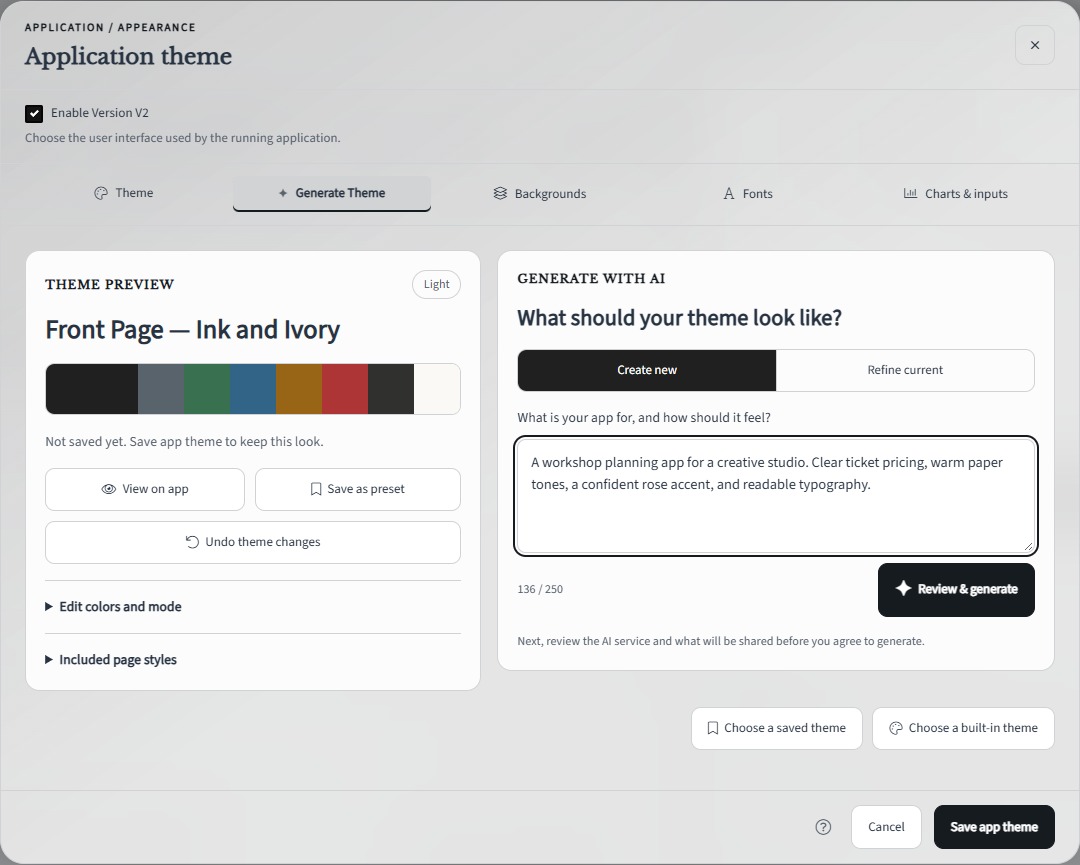
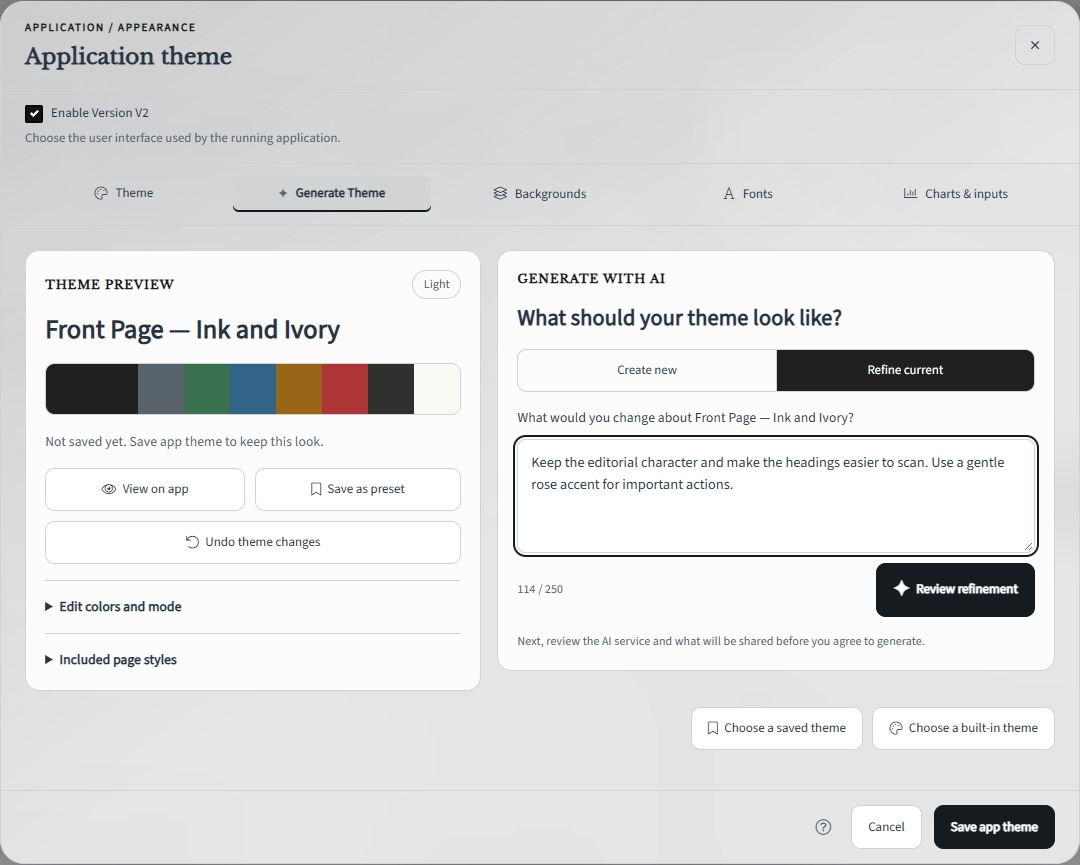
Start with the purpose and feeling of your application. AI theme assistance brings colors, typography, display mode, backgrounds, navigation, loading screens, and transitions together in a result you can review.
- Create a new theme or refine the current generated theme.
- Review the AI service and the context to be shared before agreeing to generate.
- Preview the result and keep control of whether to apply it.
Where to find it
In Layout & Controls, choose Change app theme and open Generate Theme. Availability depends on your workspace and server configuration.
Loading screenshot…
Use Left and Right arrow keys to browse images.
Reuse a workspace’s signature look
Save themes as workspace presets and compare interactive previews before reusing them.
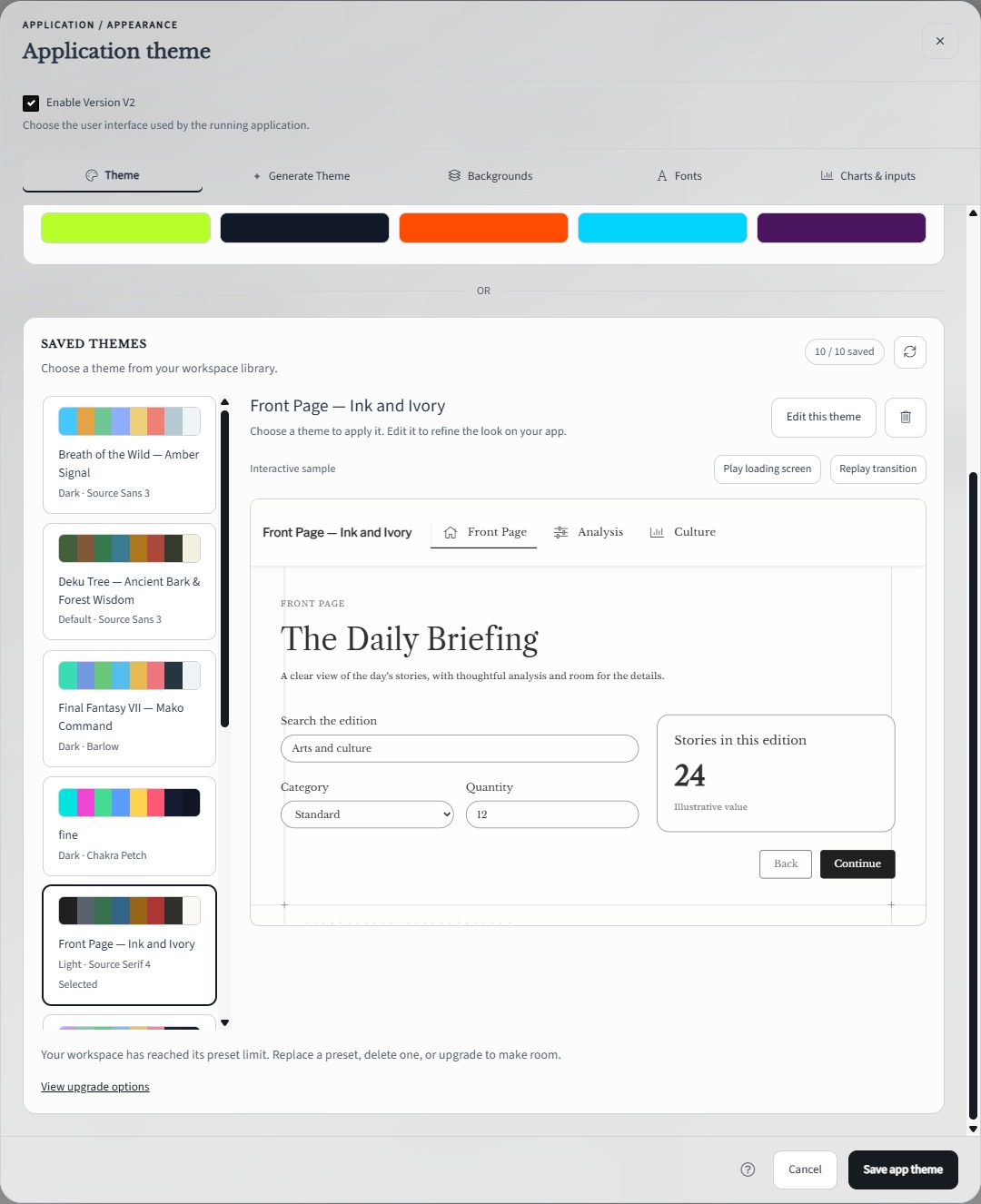
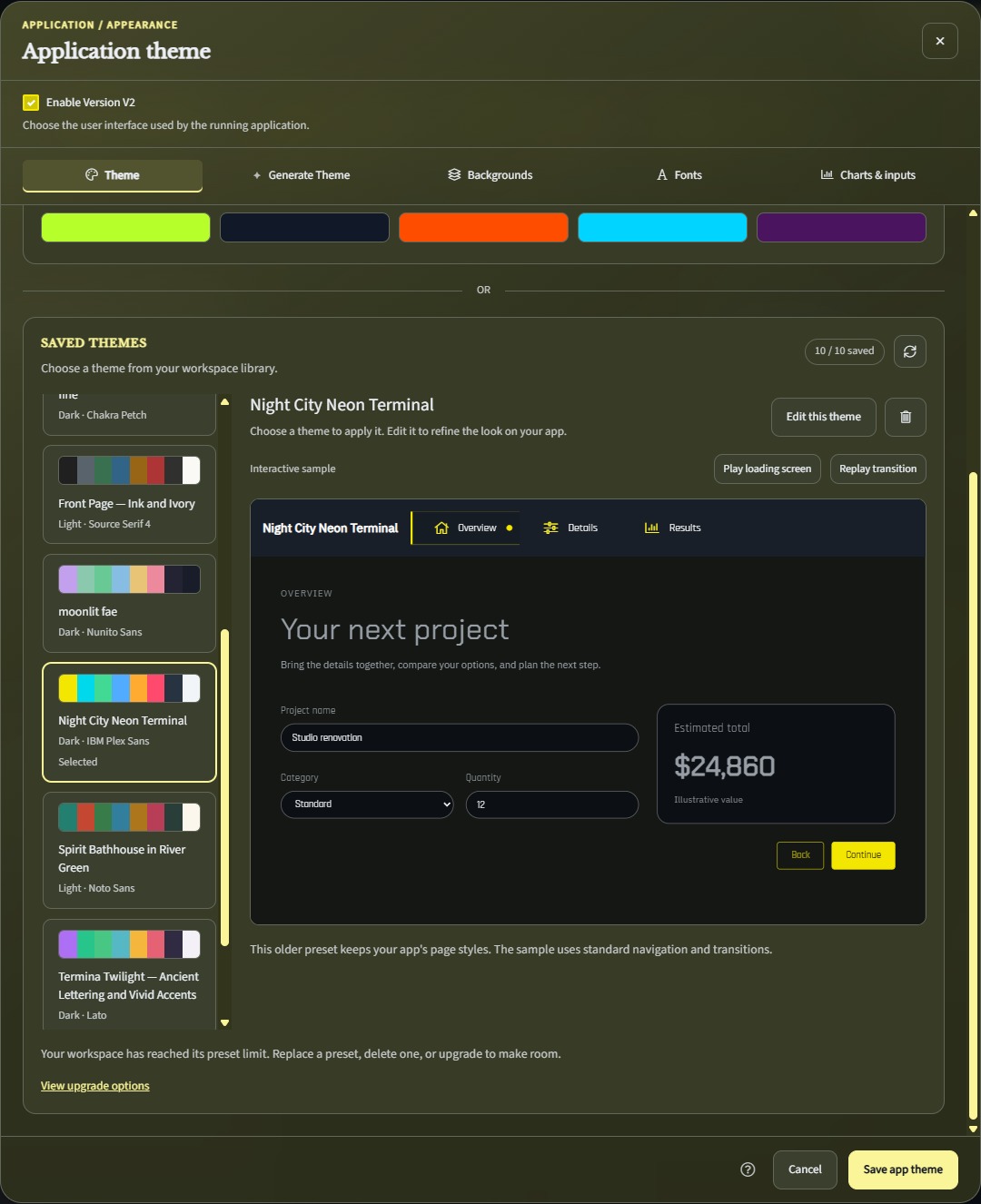
Keep related applications visually connected without rebuilding their appearance settings each time. Workspace presets preserve a coordinated theme and let you inspect its colors, type, background, and page styles before choosing it.
- Browse saved themes in the workspace library.
- Preview the theme with sample content and included page styles.
- Save and reuse presets within your plan’s allowance.
Where to find it
Open Change app theme, then Choose a saved theme. Use the save option for the current generated theme when it is available.
Loading screenshot…
Use Left and Right arrow keys to browse images.
Hand over a workspace with confidence
Transfer ownership after both people confirm by email, with guided billing steps for paid workspaces.
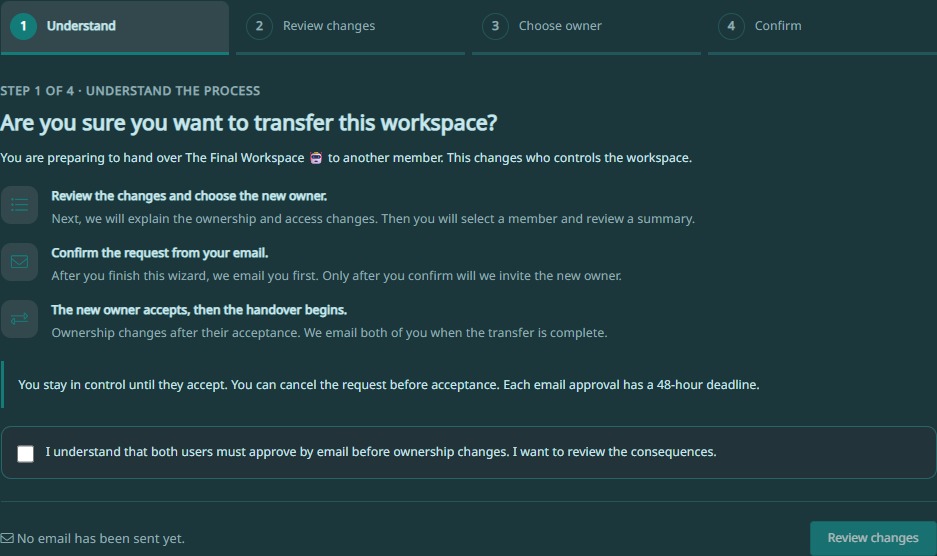
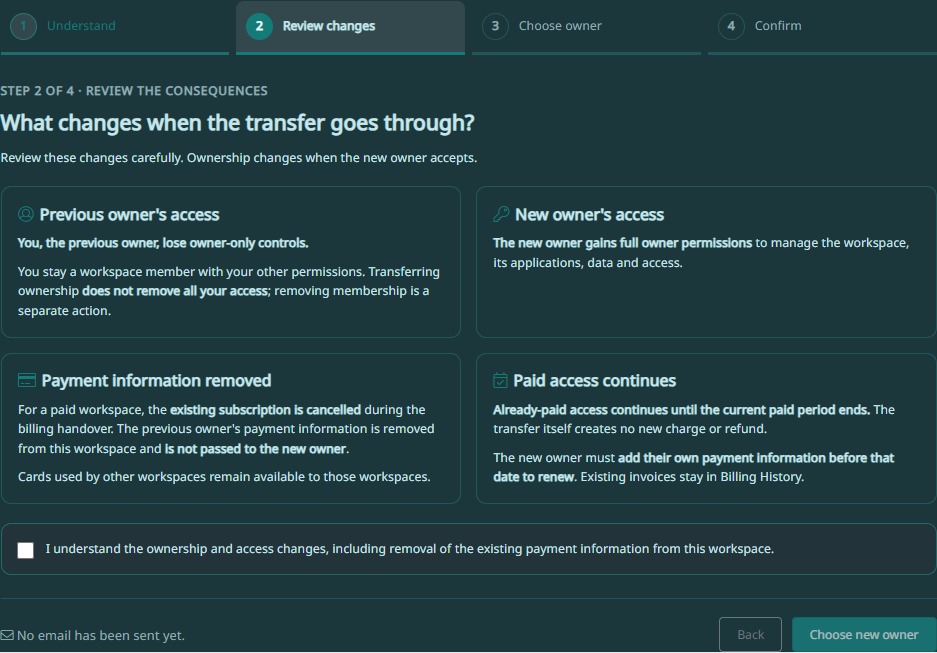
Workspace ownership can move to another member of your team through a guided handover. Confirmation from the current and new owner helps keep the transfer deliberate, while paid access is protected during the transition.
- Both the current and new owner confirm by email.
- The new owner receives the steps needed to arrange billing where required.
- Enterprise and private-server transfers follow the applicable billing rules.
Where to find it
As the workspace owner, open My Workspaces, edit the workspace, and choose Manage ownership. Review the steps before starting a transfer.
Loading screenshot…
Use Left and Right arrow keys to browse images.
Explore three new flows with popup pages
Dock, Encore, and Renew bring popup pages into complete, reusable library designs.
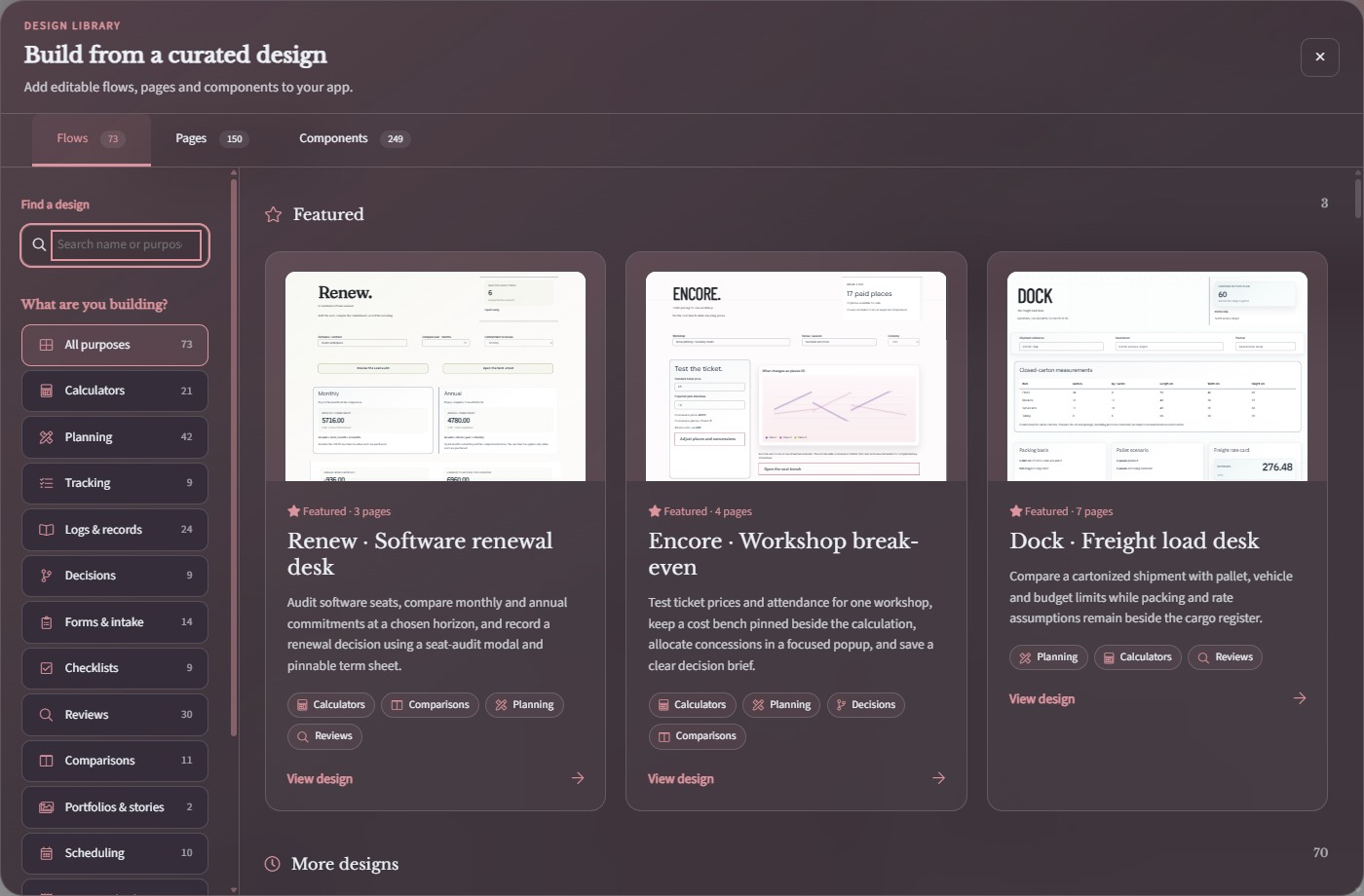
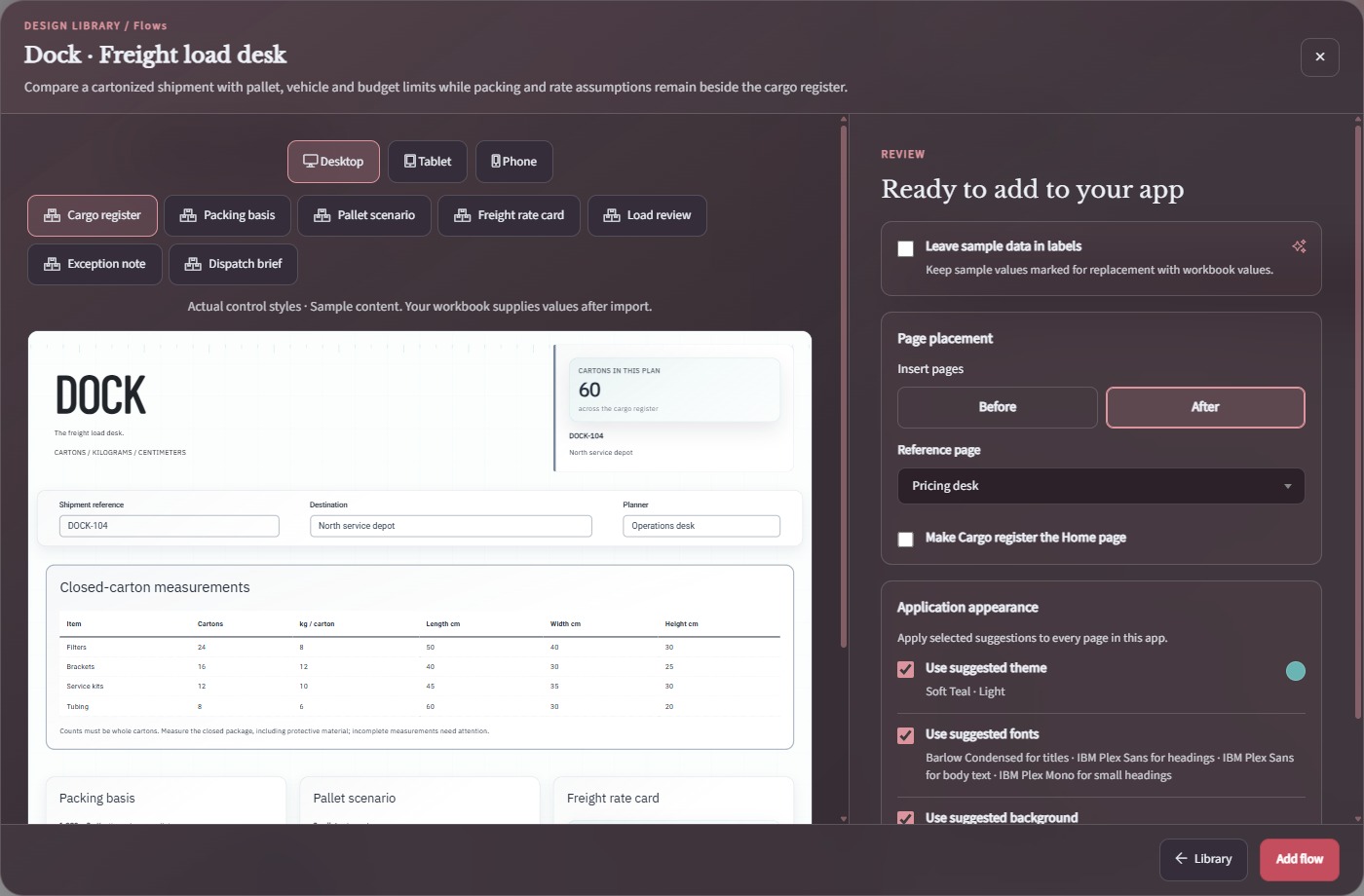
See how popup pages support practical work: plan freight with Dock, explore workshop break-even with Encore, or manage license decisions with Renew. Each flow includes companion pages and components for smaller insertion needs.
- Preview the complete journey before importing.
- Explore focused supporting tasks, side-by-side information, and popup details.
- Bring in a flow, a companion page, or a reusable component and connect it to your workbook.
Where to find it
In Layout & Controls, open Design library and search for Dock, Encore, or Renew. Inspect the preview and Review options before importing.
Loading screenshot…
Use Left and Right arrow keys to browse images.
Work through Designer settings with less friction
More Designer screens share clear panels, themed controls, and focused settings groups.
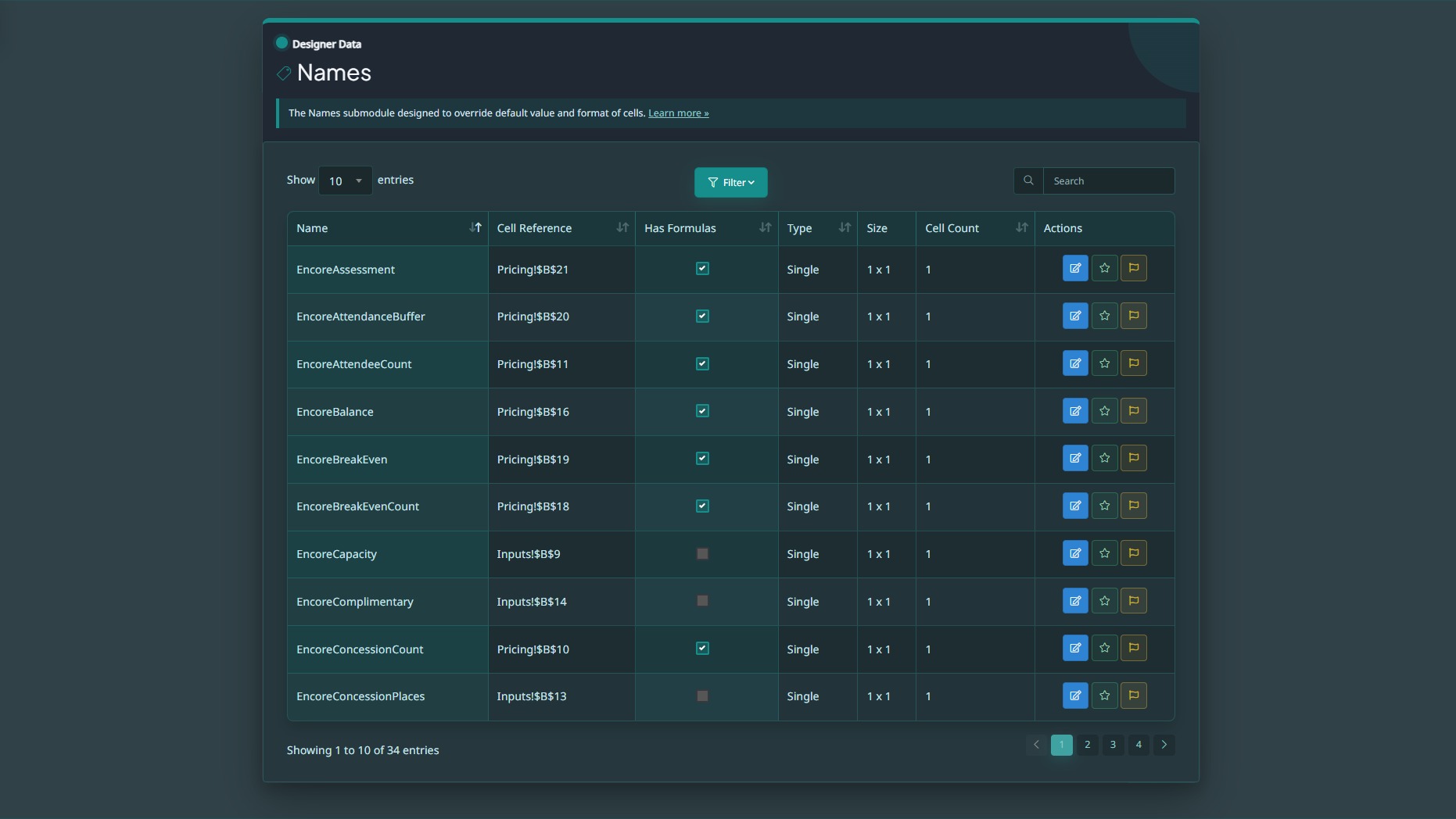
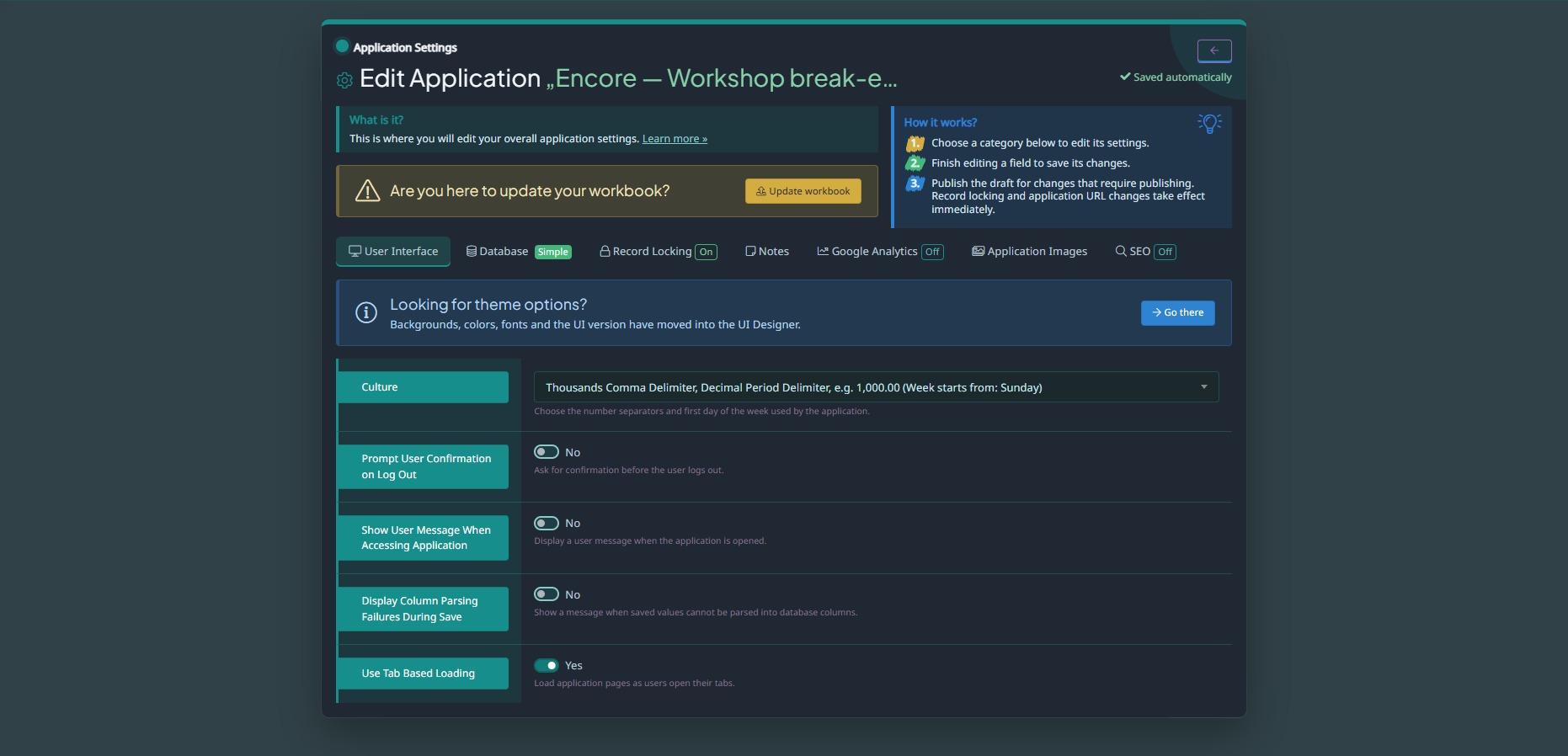
Database, named-range, query, import, validation, tag, and application settings now follow a more consistent editing pattern. Clear headings and steadier navigation help you stay oriented while working through the configuration.
- Find the relevant settings in focused panels and groups.
- Use clearer headings, themed switches, and searchable choices.
- Keep sidebar selection and page position steadier when moving through editors or saving.
Where to find it
Open a Designer application and use Settings, Names, Databases, Queries, or the other configuration sections in its sidebar.
Loading screenshot…
Use Left and Right arrow keys to browse images.
A more consistent workspace experience
Updated Hub panels and wider application views make everyday administration easier to scan.
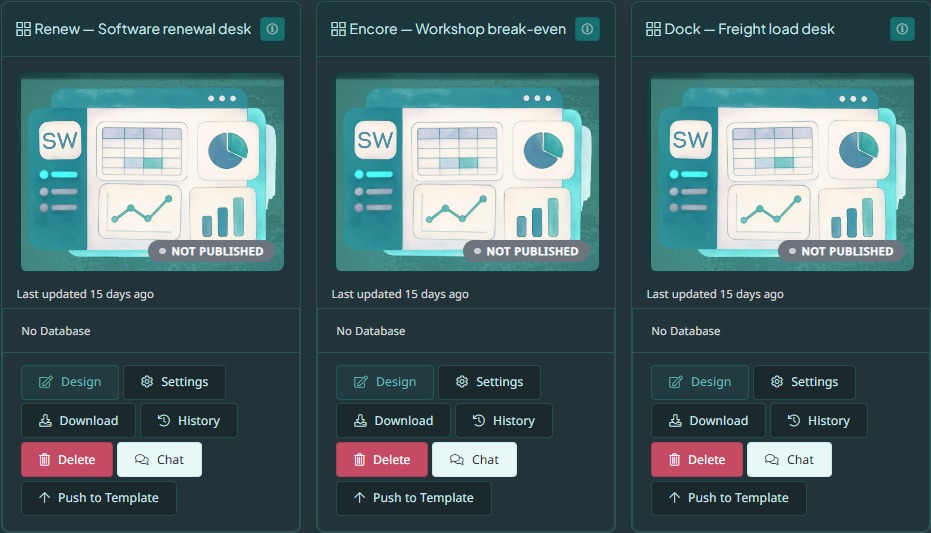
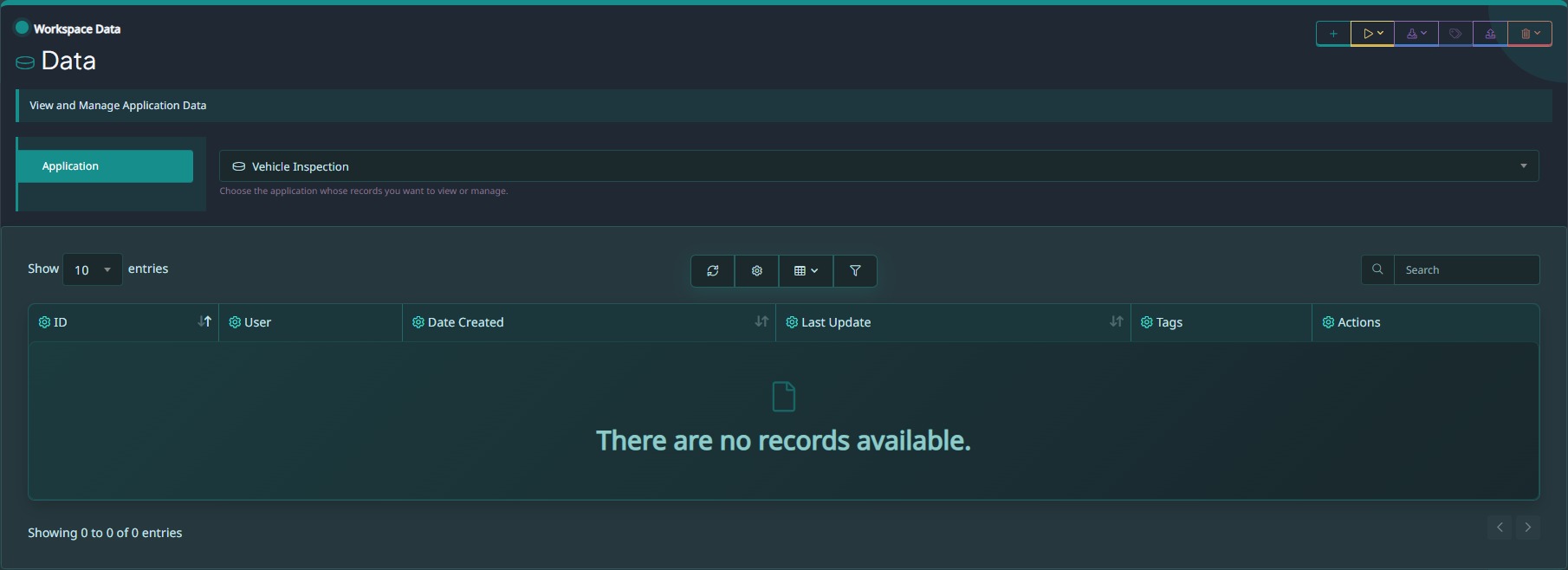
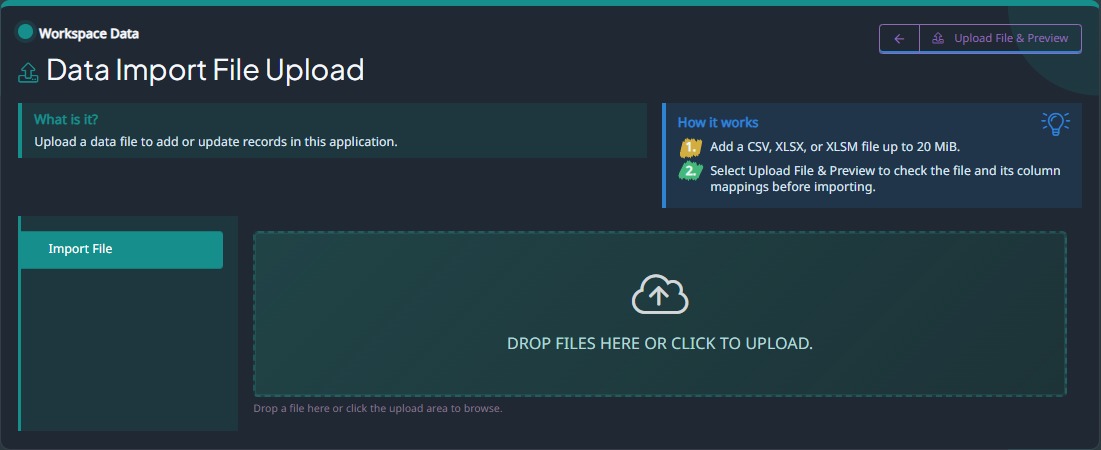
Applications, data lists and imports, users, invites, access settings, API clients, dashboards, and Analytics now share a more consistent panel and form layout. Wider views give application and transaction information more room.
- Scan application and transaction-history views with more usable width.
- Work through related settings in clearer panels and forms.
- Get more useful validation feedback when editing access.
Where to find it
Use Applications, Data, Users, Invites, or the other workspace sections in Hub.
Loading screenshot…
Use Left and Right arrow keys to browse images.
Shape queries with clearer tools
Query and Power Query editors bring connection details, selection, previews, and exports into clearer views.
Build on the existing query tools with a more focused editor. Connection settings, column selection, and result previews are easier to work through, while database lists provide clearer labels and copy actions.
- Review query connections and select the columns you need.
- Inspect previews and use the available export controls.
- Edit Power Queries more reliably when some metadata is missing.
Where to find it
In Designer, open Queries or Power Queries and select an existing query or create one.
Arrange dashboards with clearer feedback
Faster loading and highlighted widget spaces make dashboards easier to view and arrange.
Dashboard updates keep the working area steadier as you move between View and Design. Placement highlights make available widget positions easier to recognize, and sticky headers and tools stay in their intended layers.
- Recognize widget spaces on hover and while dragging.
- Reopen View or Design with working dashboard controls.
- Benefit from more consistent row removal, sticky headers, and widget tools.
Where to find it
In Hub, open Dashboards. Open a dashboard in View or Design to review its layout.
Workspace AI usage now includes theme generation and SEO suggestions, with token totals and activity details in Analytics to help you understand usage.
Expanded Excel calculation compatibility improves nested-array handling across engineering, complex-number, statistical, forecasting, and Lambda formulas. Workbooks that use Excel’s internal long-text representation are also supported.
Fixed runtime filtering errors in form-based input grids while preserving row visibility and editing.
Fixed data imports failing with overflow errors when valid negative integer values are present.
Google Sheets files now open correctly through Google Drive’s Open with action. Refreshing an unchanged workbook within the Free workspace size limit no longer incorrectly rejects it as too large.
Fixed saving application SEO settings and opening application notes history. Designer and email workbook-value dialogs now use the correct wording for Google Sheets and Excel applications.
Fixed clearing individual named-range overrides and restored cell-reference information when a named-range selector is disabled. Power Query editing also handles missing metadata more reliably.
Restored automatic thumbnails for published applications that use themes and Design Library content.
Improved Design Library connection recovery, preview stability, and card alignment, and delayed the first-use tour until theme settings close. Shared controls, dropdowns, and settings panels also display more consistently in dark mode.
AAC and Elements now preserve locked controls during overlapping selections and avoid extra empty sections on generated pages. Improved action placement, resizing, footer behavior, and styling make setup easier to work through.
Improved subscription-change guidance, payment recovery, and renewal notifications, including clearer options when upgrading a Free workspace.
Corrected calculation and error-handling issues across Excel formulas, including complex-number, date, statistical, and forecasting calculations. Formula text and number formatting also match the workbook more consistently.